
Upload tasks and recovery
The queue uploads local files at an interval and records pending, completed, and failed states. Use it for batches, pacing, and retries. It is separate from Cloud's download and transfer list.
Check the destination first
The queue uses the current default provider and configuration when a task executes. It does not lock a separate destination onto every queued file. Check the target at the top of Upload before starting or resuming. Changing the default during execution can affect later files.
Test one file first. Keep source files at their original paths until completed; a queue is not a source-file backup.
Create a queue
- Click Task Upload on Upload.
- Click Add files or drop files into the queue.
- Check the count, names, and sizes. Pending means ready to execute.
- Open settings and adjust the interval and failure policy below.
- Click Start. Filter states or search filenames while reviewing progress.
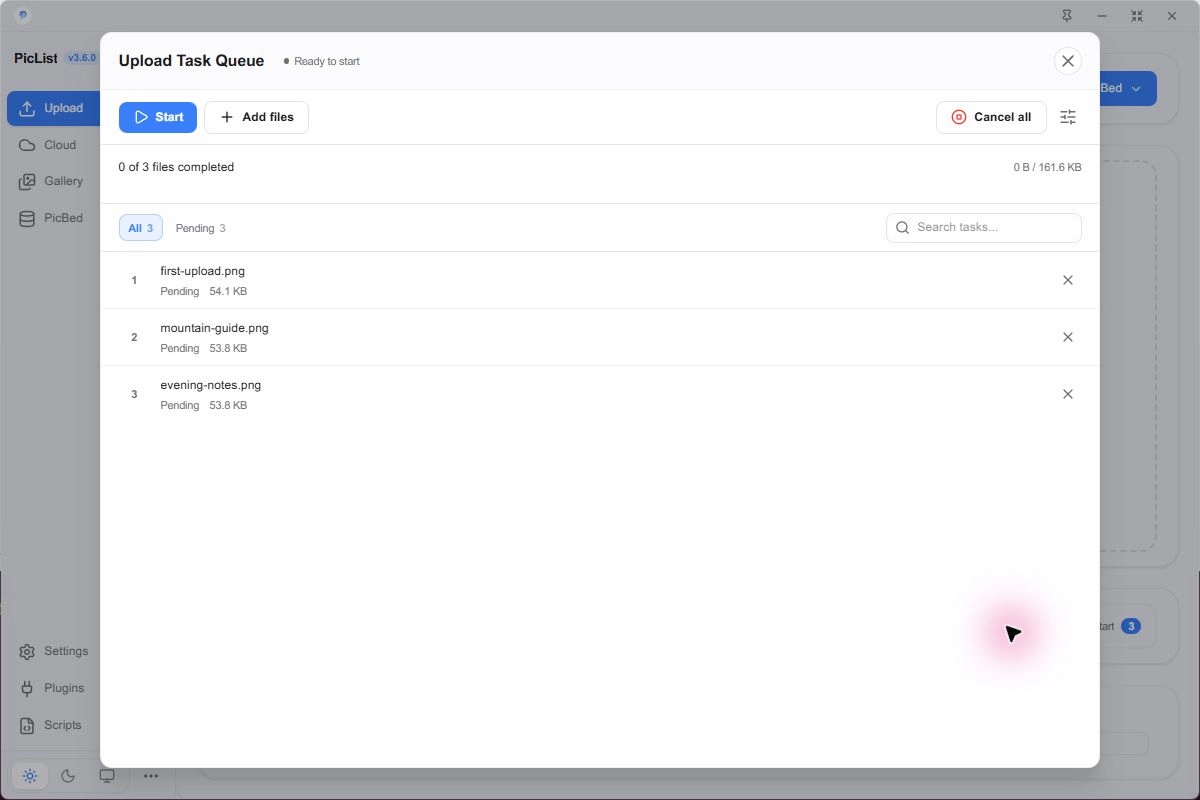
Reorder pending tasks or change their priority before a large upload. Closing the dialog does not cancel the queue; reopen it to check progress.
Set pacing and retries
| Setting | Range / behavior | First exercise |
|---|---|---|
| Upload interval | 0.1–99999 seconds; default 1 | 2 seconds |
| Automatic retries | 0–10; 0 disables automatic retries | 3 |
| Auto start | Starts after adding files according to queue state | Off, to review first |
| Pause on error | Pauses after failure for diagnosis | On |
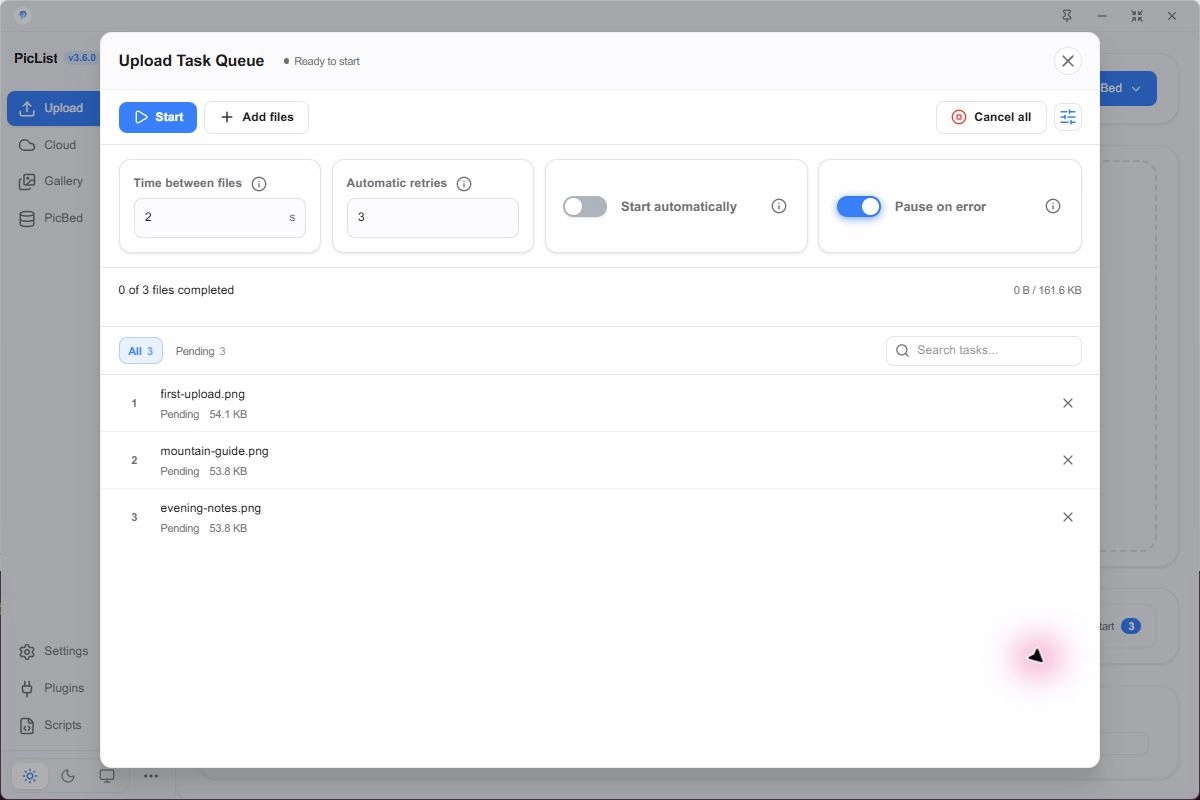
The interval controls pacing, not request timeout. Upload duration, retries, and manual naming prompts affect total time. Adjust it to your service's rate limits; the minimum is not suitable for every provider.
Pause, resume, and cancel
| Action | Behavior |
|---|---|
| Pause | Requests a pause; the active file finishes its current workflow |
| Resume | Continues pending tasks; recheck the default target |
| Retry / Retry all failed | Retries failed delivery or finalization recovery |
| Cancel | Stops the relevant pending work; does not undo delivered files |
| Clear finished | Removes finished queue entries; does not delete remote files |
After partial success, review Completed and Failed counts rather than adding the entire batch again.
Remote upload completed, result saving failed
Uploading also includes saving gallery records and running success-stage actions. 3.6 records remote completion and finalization data for recovery.
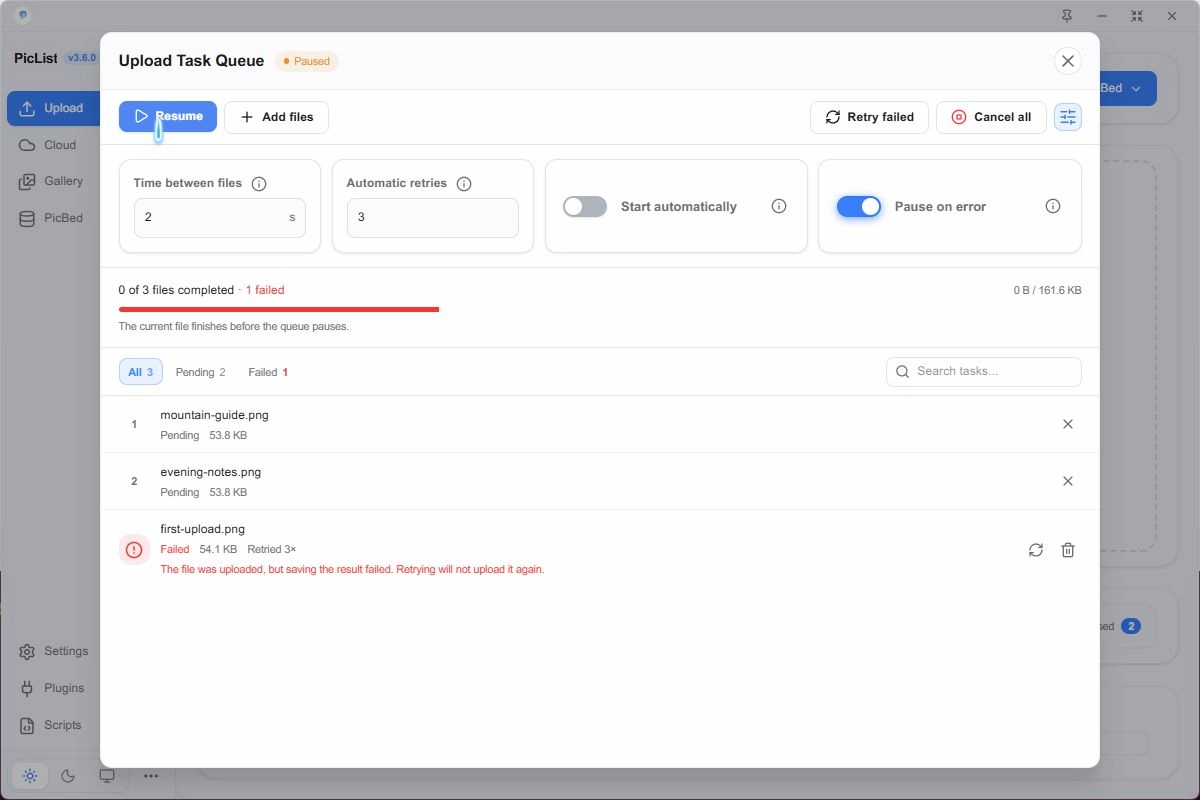
For The file was uploaded, but saving the result failed:
- Confirm the file exists in the target directory or bucket.
- Check data-directory write access, disk space, and success-stage script errors.
- Keep the original task and recovery data; fix the issue, then Retry that task.
- Recovery uses existing finalization records. Adding the file again creates a new upload.
- If the recovery journal is unavailable, preserve a backup and inspect logs and remote state before proceeding.
API callers have the same finalizationId mechanism; see the Desktop HTTP API.
Continue after restart and diagnose other failures
Queue state is saved locally in taskQueue.json; 3.6 improves interrupted-job recovery. After restarting, reopen Task Upload, review pending, completed, and failed states, then confirm the target before continuing. Restore moved source paths or add those files again.
| Symptom | First action |
|---|---|
| Authentication or setup failure | Fix the configuration and test one image |
| Rate limit | Increase the interval and reduce other concurrent uploads |
| Missing source file | Restore its path or add that file again |
| Interruption with uncertain delivery | Check whether the destination already has the file |
| Remote completed, finalization failed | Retry recovery on the original task |
| Queue fails to load | Reload, check data directory and logs, preserve a backup |
Use the Core CLI or HTTP API for automation. Script stages extend the lifecycle and do not supply a scheduler by themselves.