
Script system
Extend desktop upload workflows with JavaScript managed inside PicList. Scripts do not need to be packaged as npm plugins.
Create and manage
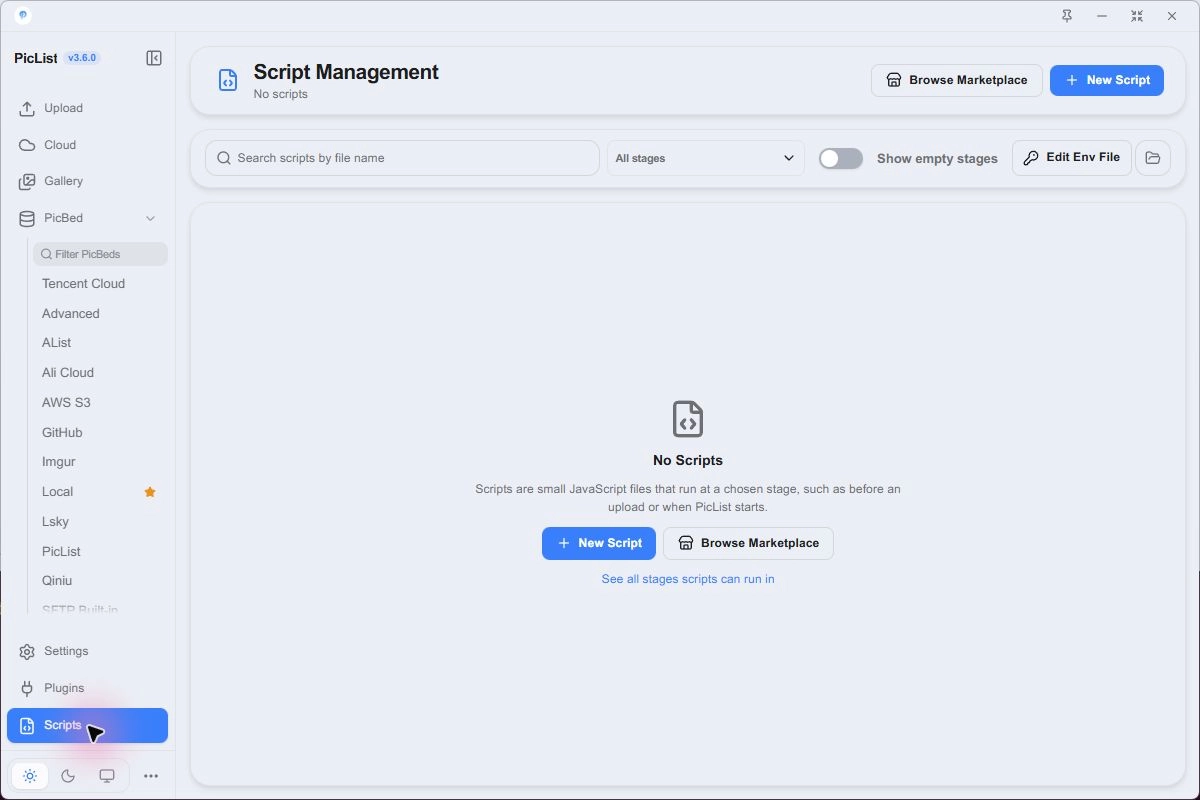
For a first experiment, use the “prefix names before upload” example below:
- Click New Script and choose a descriptive name.
- Select beforeUpload, paste the example, and save.
- Verify that the script is enabled.
- Upload one file with the Local practice configuration and check the docs- prefix.
- Disable the script when finished so later uploads no longer inherit it.
Keep complete ctx objects, configurations, request headers, and .env contents out of logs. Emit only necessary status. Use built-in naming for dates and random names without a script.
Manual and advanced custom uploader scripts have dedicated entry points. The selected stage determines when other scripts run.
Scripts live in the scripts folder inside the data directory. Find examples in ScriptsHub and read their code before running them.
Execution stages
| Stage ID | Timing |
|---|---|
| onSoftwareOpen / onSoftwareClose | App startup / shutdown |
| preProcess | Preprocessing entry after inputs are read |
| beforeTransform / transform | Before / after input transformation |
| beforeUpload | Before sending files to the provider |
| upload / afterUpload | After the upload stage and after upload plugins |
| onUploadSuccess | Once for each result saved to the gallery |
| onGalleryRemove | During gallery removal |
| manualTrigger | Run explicitly from the script page |
| uploader.advancedplist | Advanced custom uploader |
Choose the stage closest to your goal and test one file. Success-stage scripts can participate in finalization; handle recovery information when they fail.
Entry point
async function main(ctx, extra) {
  // ctx is the upload client; extra depends on the stage.
  return ctx
}
An advanced custom upload script must return ctx and set imgUrl on each output record. Other return values depend on the selected stage.
Available APIs
| Object | Purpose |
|---|---|
| ctx.input / ctx.output | Input list / current upload records |
| ctx.getConfig(key) | Read a setting |
| ctx.saveConfig(object) | Save settings by dotted field paths |
| ctx.request(options) | Compatible request interface |
| ctx.log | Application logger |
| extra | Stage-specific data, such as galleryItem |
| axios, crypto, fs, path, os, Buffer | HTTP, cryptography, files, paths, and buffers |
| env | Variables read from scripts/.env |
| base64Encode / base64Decode | Encoding helpers |
| Timer functions | setTimeout / setInterval and related helpers |
Example: prefix names before upload
Save this script in the beforeUpload stage:
async function main(ctx) {
  for (const image of ctx.output) {
    if (image.fileName && !image.fileName.startsWith('docs-')) {
      image.fileName = 'docs-' + image.fileName
    }
  }
  return ctx
}
For dates, hashes, or random names, prefer built-in naming.
Credentials and execution access
Store private script values in your local scripts/.env and read them through env. Keep .env out of public repositories. Scripts can access files and the network. Review their code and keep complete contexts, configurations, and authentication headers out of logs.