
S3, R2, and MinIO
The built-in AWS S3 provider connects to Amazon S3, Cloudflare R2, MinIO, and compatible S3 APIs. Its ID is aws-s3-plist; no separate S3 plugin is needed.
This walkthrough uses R2: prepare a bucket, configure PicList, upload a test image, and verify a public link. If you already have a bucket and credentials, skip to Configuration fields.
Prepare a bucket and connection details
- Open R2 in Cloudflare's dashboard and create a bucket, for example docs-images.
- In R2 API token management, create an account or user token for S3 with the required object read and write access to your bucket.
- Save the generated Access Key ID and Secret Access Key privately. These are S3 credentials; a general Cloudflare API token is not a substitute for these fields.
- Copy the S3 endpoint for your account and jurisdiction. A standard example is https://ACCOUNT_ID.r2.cloudflarestorage.com.
Follow the current dashboard labels and R2's S3 quick start and token instructions.
Public image access is a separate setup step.
Configuration fields in PicList
Expand PicBed → AWS S3 and add a configuration named Blog R2. Fill in these fields, Confirm, select the card, and make it the default provider.
| Meaning / JSON field | R2 example | What to enter |
|---|---|---|
| Config Name | Blog R2 | A name for this set of PicList settings |
| Access Key ID / accessKeyID | Enter locally | Generated S3 Access Key ID |
| Secret Access Key / secretAccessKey | Enter locally | Matching S3 Secret Access Key |
| Bucket / bucketName | docs-images | Bucket name, without a URL |
| Region / region | auto | R2 uses auto |
| API endpoint / endpoint | https://ACCOUNT_ID.r2.cloudflarestorage.com | Your actual S3 endpoint |
| Upload prefix / uploadPath | docs/ | Directory prefix inside the bucket |
| Public URL prefix / urlPrefix | https://images.example.com | A serving domain connected to your bucket |
| Path-style access / pathStyleAccess | Provider-dependent | Keep the default initially; follow your service's requirements |
| Omit bucket from public URL / disableBucketPrefixToURL | Mapping-dependent | Avoid a duplicate bucket when path-style access is on and your domain maps to the bucket root |
| Object ACL / acl | auto | Omit the ACL header |
See R2's S3 API compatibility for region and endpoint details. Replace all placeholder account and domain values with your own.
What auto does
In PicList 3.6 / Core 3.0, auto omits the ACL request header. It does not make the bucket public. Serving domains and provider access policies still control reading.
Prepare a public serving address
For permanent article images, connect a public serving address to the bucket before setting urlPrefix.
In R2, open the bucket's Settings → Custom Domains → Add, enter a domain from the same Cloudflare account, and complete the connection. Wait until it is active. A Public Development URL is useful for testing; r2.dev has rate limits and is not a production serving domain. See R2 public buckets for requirements.
Keep only intended public assets in a public bucket. A PicList domain setting changes generated links; the storage service controls actual public access.
How a path becomes a public link
Suppose bucketName is docs-images, uploadPath is docs/, urlPrefix is https://images.example.com, and the file is photo.png:
| Location | Result |
|---|---|
| Bucket | docs-images |
| Object key inside it | docs/photo.png |
| Public URL when the domain maps to the bucket root | https://images.example.com/docs/photo.png |
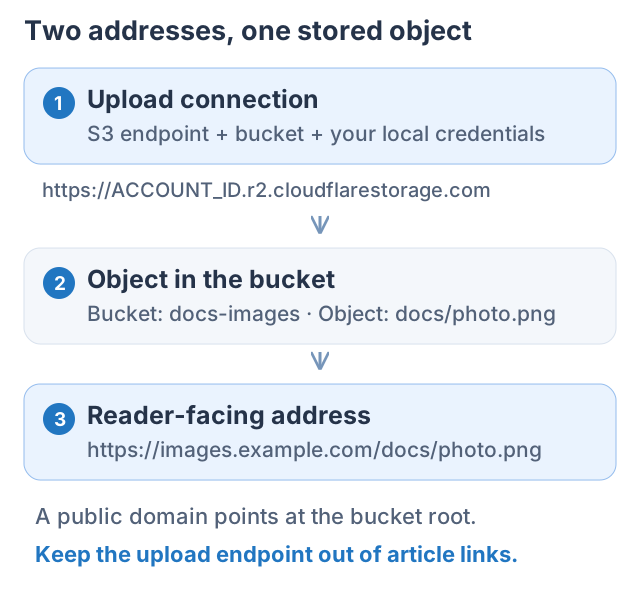
With pathStyleAccess enabled, PicList normally adds the bucket name after a custom URL prefix. Enable disableBucketPrefixToURL if your domain already maps to the bucket root; otherwise an unnecessary /docs-images/ segment can appear. Choose according to the actual serving mapping.
A filename template containing directories also affects the final object key; see Automatic naming.
Verify with one image
- On Upload, check AWS S3 and your configuration name.
- Upload a small PNG. Open the bucket in the storage dashboard and confirm it exists under docs/.
- Copy URL from the gallery and open it in a browser window without a storage dashboard login.
- Once it loads, switch to Markdown and paste into your article editor.
| Symptom | First check |
|---|---|
| Timeout or resolution failure | Endpoint spelling, HTTPS, network, proxy |
| AccessDenied / 403 while uploading | Credentials belong to this account and allow writes to this bucket |
| ACL error | Select auto and check the service's ACL support |
Older version fails with proxy: null | Upgrade to PicList 3.6.1 / Core 3.0.2; a null proxy value is treated as unset |
| Object exists but public URL is 404 | Domain connection and duplicate bucket or directory segments |
| Public URL returns 403 | Public access policy or expired signature |
| Link works initially, then expires | Whether it is a temporary signed URL |
Without a public prefix and with a non-public ACL, the S3 uploader can return an approximately one-hour signed URL. Long-lived images need a serving address you have configured.
Amazon S3 and MinIO
For Amazon S3, use the bucket's actual region and appropriate endpoint. auto lets bucket policy and object ownership settings determine access. Use another ACL only when the service supports and requires it.
For MinIO, use the deployment's S3 endpoint, bucket, and credentials. Path-style access is common; distinguish the S3 API from the management console login page. A public website or CDN address can differ from the S3 endpoint.
Repeat the write and anonymous-read checks above. To browse existing objects, add a separate Cloud management configuration.