
Choose and configure storage
A provider receives your files. PicList sends them through its upload interface and builds a link from your settings. Your storage service supplies the account, bucket, and public serving address.
For a first session, complete the Local exercise, then connect online storage. This page explains configuration cards, provider choices, and how to check the destination.
Understand the four names
| Name | Example | What it selects |
|---|---|---|
| Provider | AWS S3, GitHub, Local | The upload interface |
| Config Name | Blog, Practice | One set of settings for that provider |
| Storage target | Bucket docs-images, repository owner/repo, directory | Where the file is written |
| Public address | https://images.example.com | Where readers fetch the file |
Use descriptive configuration names, such as Blog R2 and Project images. A configuration name can appear in the API or CLI configName parameter; it is separate from the bucket name.
Save and activate a configuration
- Expand PicBed in the sidebar and choose a provider.
- Click Add New Configuration.
- Enter a name and the provider's connection fields, then Confirm. The guides below explain those fields.
- Return to the cards and click the configuration you want. Look for Active.
- Click Set as Default PicBed at the top right. A disabled button and sidebar star usually mean it is already the default provider.
- Return to Upload, check the provider and configuration name at the top, and upload one small image.
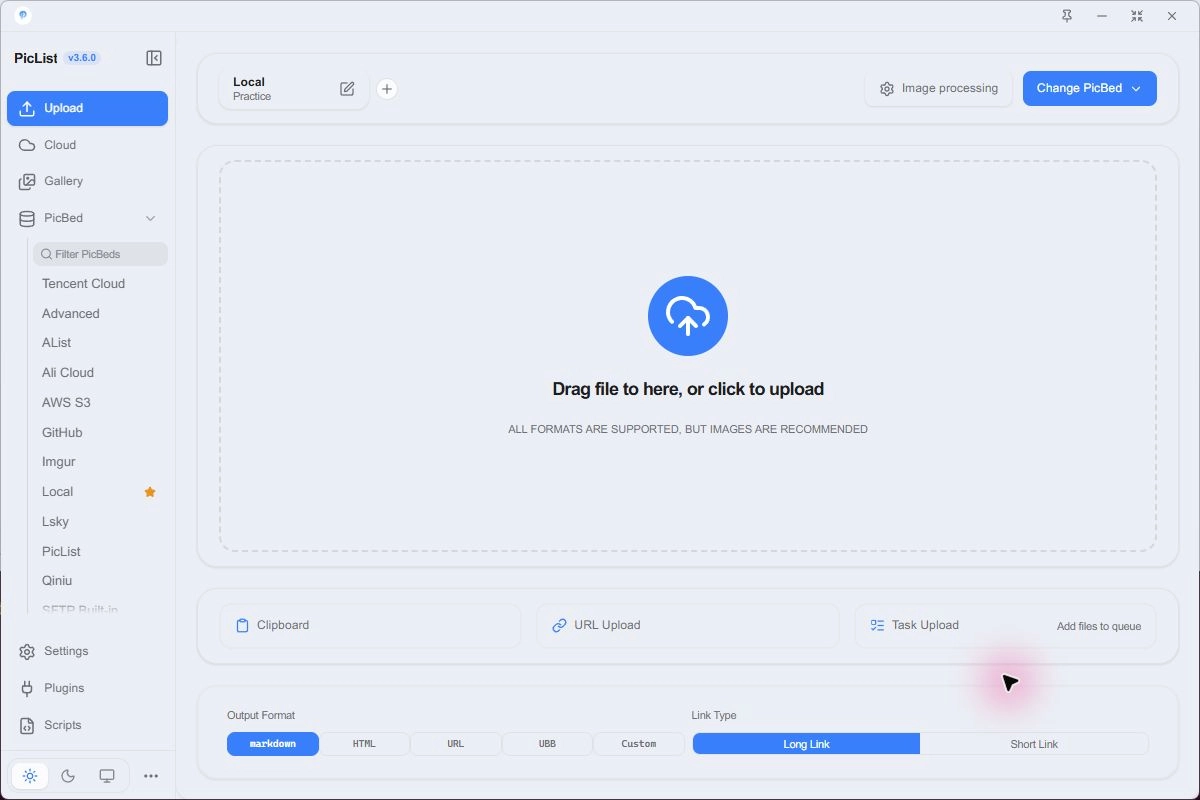
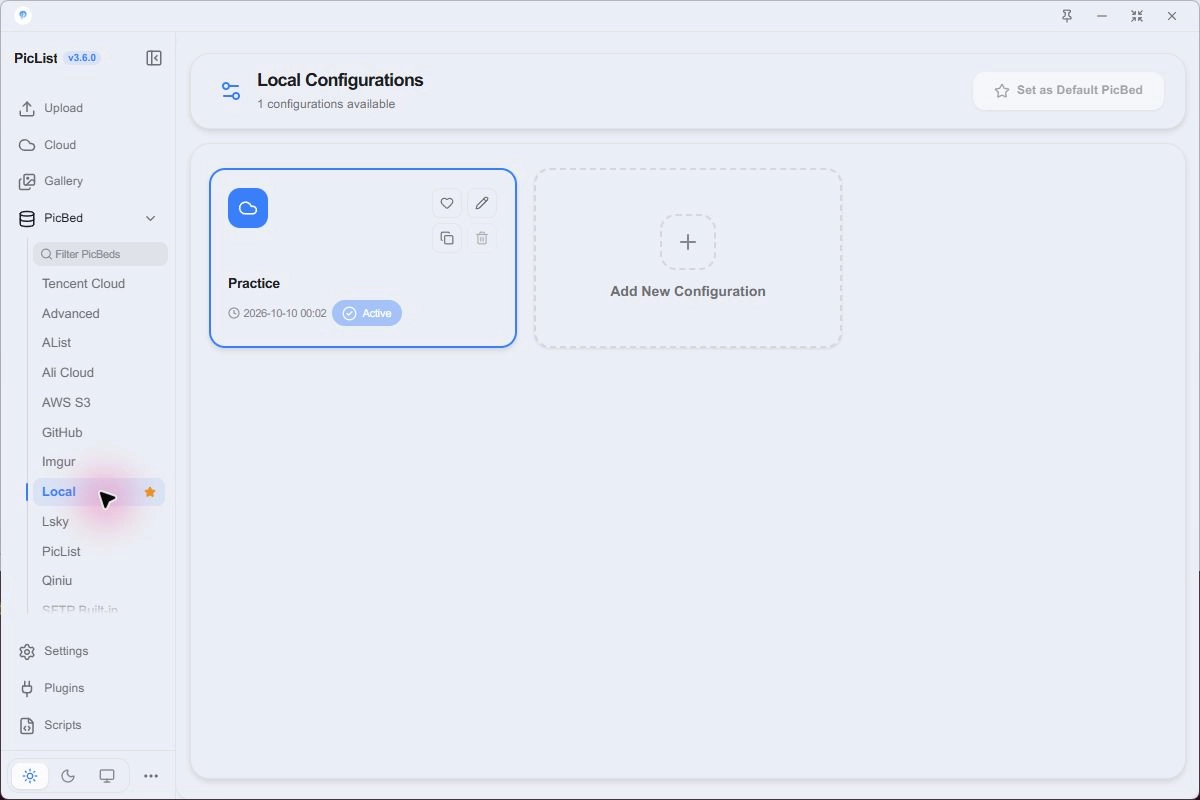
Click the current configuration at the top of Upload to edit it directly. A card's pencil edits it; its duplicate icon creates another configuration from those settings.
Verify after saving
Confirm saves settings; it does not prove the connection or permissions work. Check the destination file, then open the returned link in a browser.
Choose a provider
| What you already have | Destinations | Guide |
|---|---|---|
| An S3-compatible bucket or object storage account | Amazon S3, Cloudflare R2, MinIO | S3 / R2 |
| A GitHub repository for images | GitHub | Repository, token, and image links |
| Your own server or WebDAV service | WebDAV, SFTP | File services |
| A directory on this computer | Local | Local directory |
| A hosted image service account | S.EE, Imgur, OSS, COS, Qiniu, Upyun, Lsky, AList | Other built-in providers |
| Another computer running PicList | PicList server destination | PicList Server |
| A custom HTTP upload endpoint | Advanced uploader, scripts, plugins | Scripts / Plugins |
Check write access, anonymous reading, and file size or type restrictions separately. Having an account does not necessarily give you a public image address.
Switch between favorites
Click a card's heart, or the plus beside the current configuration on Upload, to add a quick switch. Save up to six configurations. After clicking a shortcut, check the destination at the top.
The task queue uses the default destination at execution time. Check it before starting or resuming a queue; see Upload tasks.
Paths and public links
The upload directory controls the write path; the public domain controls the returned address. They can belong to different services: an S3 endpoint receives a file while a CDN serves it. Incorrect URL mapping can leave a successful upload with an unreadable link.
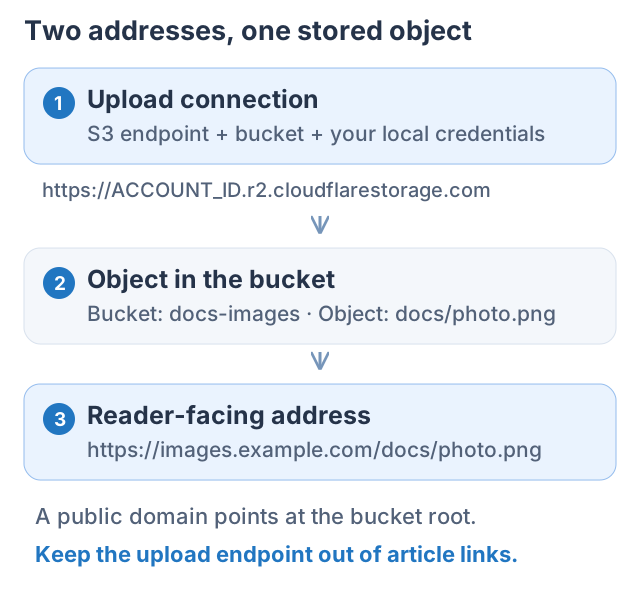
Include https:// in URL prefixes. Inspect results for duplicate bucket names or directories. See File services for Local, WebDAV, and SFTP mappings.
Upload configurations and management accounts
An upload configuration writes new files. Cloud management stores a separate configuration to list existing remote files. It can require list, read, and delete permissions beyond upload access.
Programmatic provider IDs
HTTP picbed, CLI --picbed, and Node API picBed use these IDs rather than display names.
| Provider | ID |
|---|---|
| S3 / R2 / MinIO | aws-s3-plist |
| GitHub | github |
| Local directory | local |
| WebDAV | webdavplist |
| SFTP | sftpplist |
| S.EE (retains the legacy SM.MS configuration ID) | smms |
| Alibaba OSS | aliyun |
| Tencent COS | tcyun |
| Qiniu | qiniu |
| Upyun | upyun |
| Imgur | imgur |
| Lsky | lskyplist |
| AList | alistplist |
| PicList server | piclist |
| Advanced custom | advancedplist |