
Image processing and naming
PicList can compress, convert, resize, rotate, watermark, and rename during upload. Check one test image before processing a batch.
This walkthrough uses Practice: quality 85, width 1600 with proportional height, a bottom-right text watermark, and a custom name. Screenshots show settings; actual size and appearance depend on the input, encoder, and plugins.
Choose whose settings to change
Open Upload → Image processing. Apply changes to at the top selects the scope:
| Scope | Affects | Use |
|---|---|---|
| All uploads | Every destination | Shared defaults |
| One storage service | Every configuration of a provider | All GitHub configurations, for example |
| One uploader | A single named configuration | Local's Practice configuration |
For a first experiment, choose One uploader, then the provider and configuration. Changes save automatically; Done ends editing.
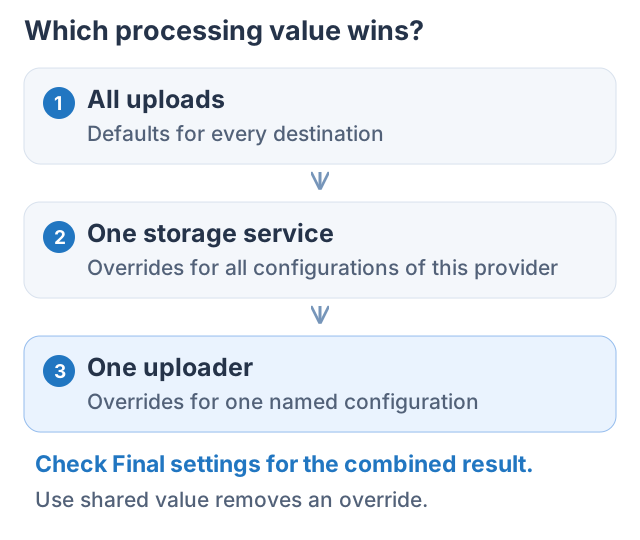
Precedence is named configuration > provider > global defaults. Show setting sources reveals where values come from. Use shared value removes the current override and follows the value above it.
Quality and format: start with a small change
- Choose Quality & format on the left.
- Select the 85% preset or adjust the slider.
- Keep the input format for the first test.
- Upload a JPEG or WebP and compare text edges, details, and file size.
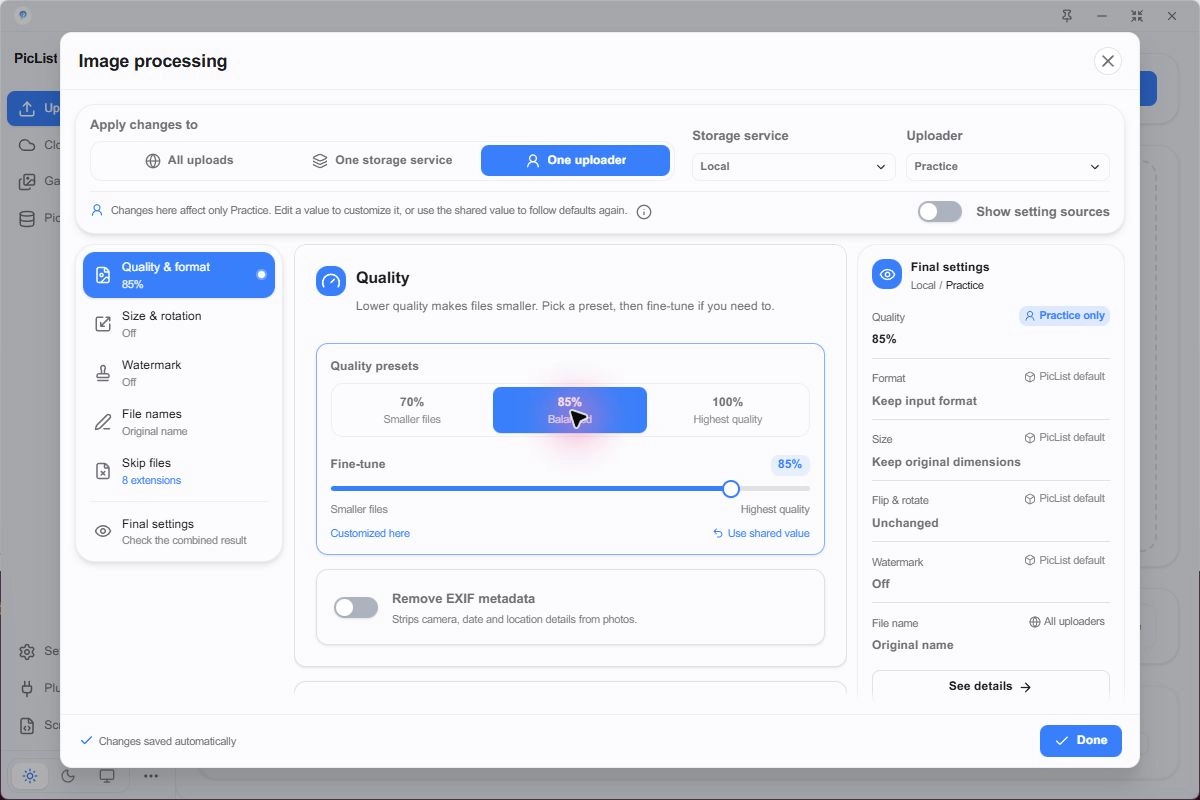
Quality has different effects across encoders; 85 does not mean every image becomes 15% smaller. Lossless formats such as PNG may not become much smaller from this slider alone.
To standardize formats, enable conversion and choose an output such as WebP. Check transparency, animation, and text clarity. Format rules can select output based on the input extension. SVG or JXL preview support does not guarantee encoding those formats on every runtime.
Resize: 1600 wide with proportional height
- Choose Size & rotation and enable resizing by dimensions.
- Set Width to 1600 and Height to 0, to calculate height from width.
- Turn percentage resizing off; it takes priority over fixed dimensions.
- Enable the option to avoid enlarging small images.
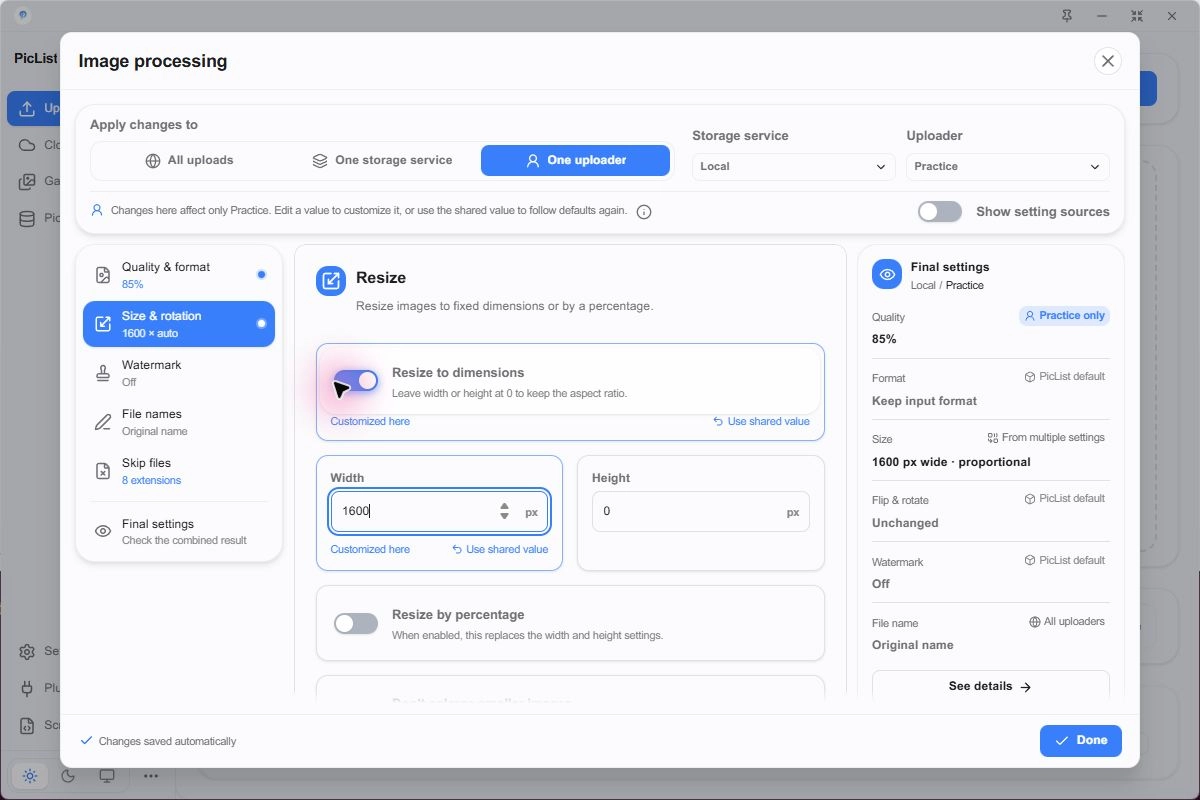
A 2400 × 1600 landscape image becomes approximately 1600 × 1067; check the actual file dimensions. A 1000-pixel-wide image should remain smaller when enlargement is disabled.
Setting both dimensions can affect fitting or cropping; verify with your own input. Rotation, flipping, and later plugins can also change final dimensions.
Text watermark: use a readable font
- Choose Watermark, enable it, and select Text.
- Enter PicList demo and choose Bottom Right.
- Select a readable local font file and adjust size, color, and margins.
- Test a light and a dark image for contrast and clipping.
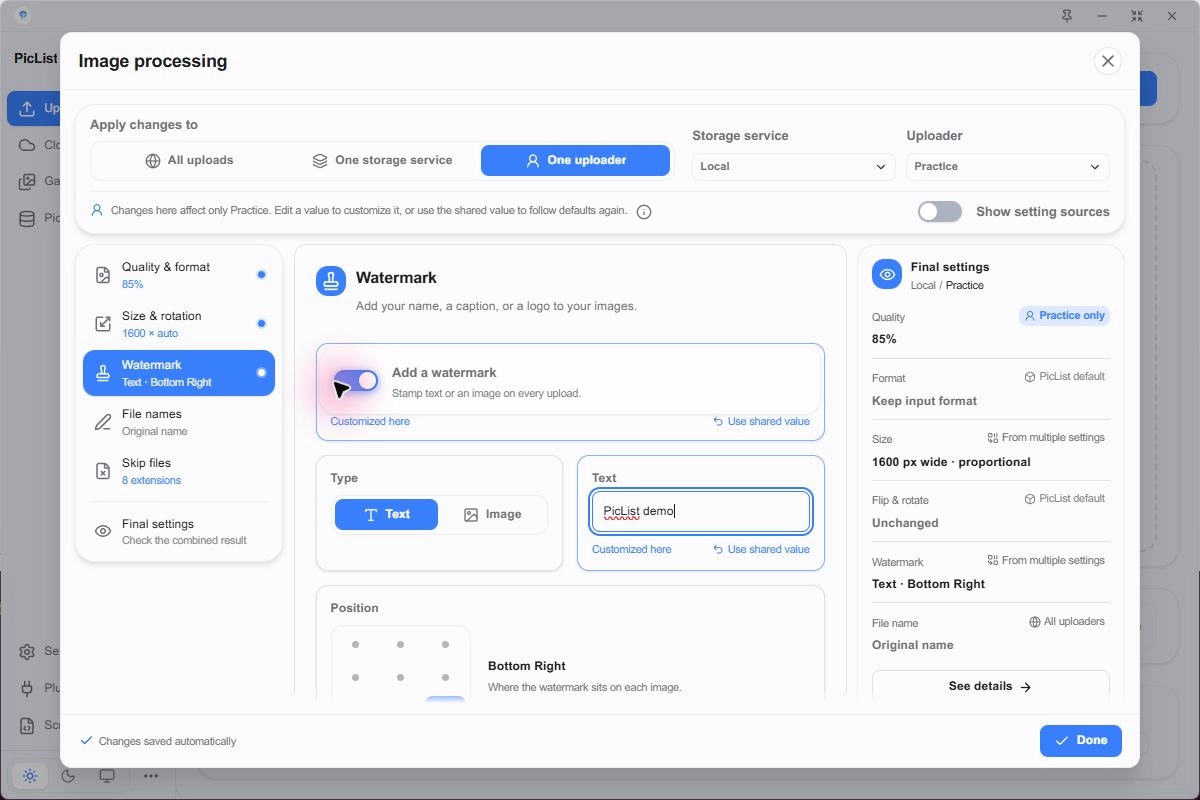
An empty font path may trigger a default font download. If watermark processing stalls or the text is missing, select a local font and check the logs. Image watermarks need a readable image file and support scale, opacity, and position. Full-image watermarks provide repeated coverage.
Automatic naming: readable names with fewer conflicts
- Choose File names and enable the custom pattern.
- Enter the pattern below.
- Turn timestamp naming off so it does not replace the pattern.
- Inspect the generated example, then check an uploaded filename.
{Y}-{m}-{d}-{filename}-{str-6}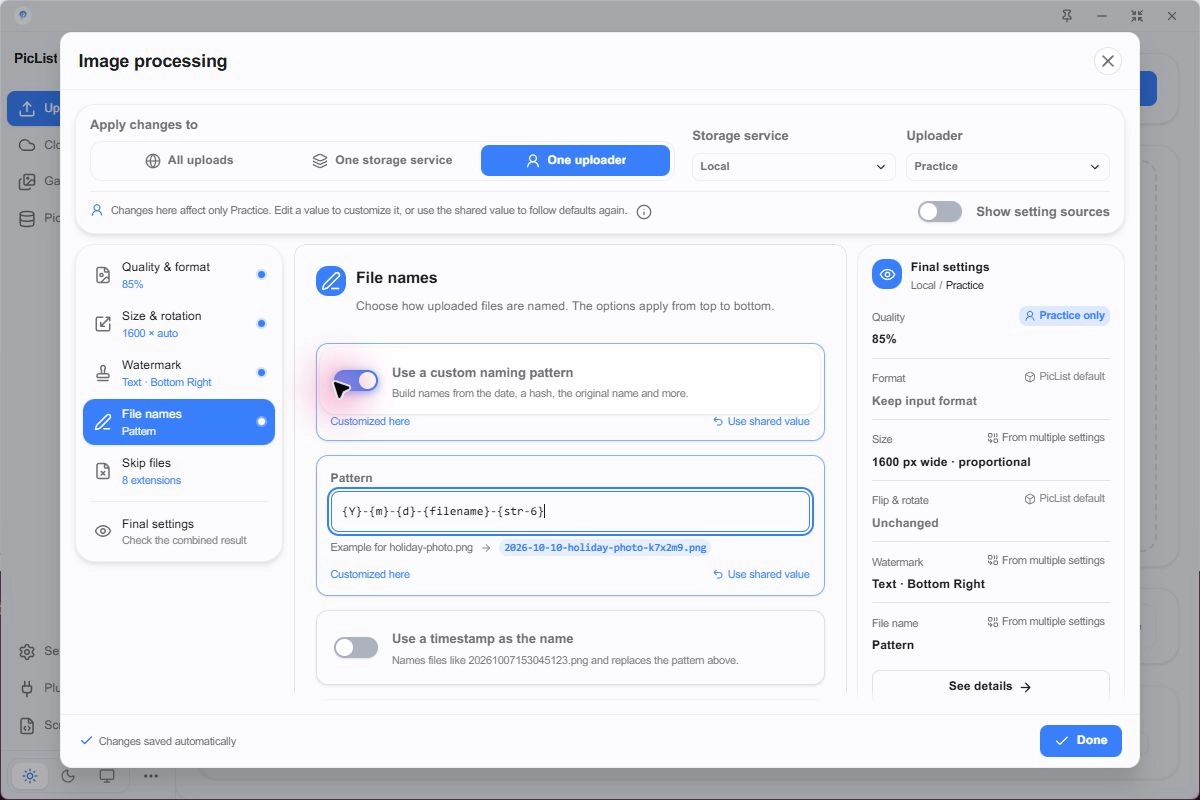
| Placeholder | Meaning |
|---|---|
{filename} | Original basename without extension |
{Y} / {y} | Four-digit / two-digit year |
{m} / {d} | Month / day |
{h} / {i} / {s} / {ms} | Hour / minute / second / millisecond |
{timestamp} / {timestampS} | Millisecond / second timestamp |
{uuid} / {ulid} | Generated identifier |
{str-6} | Random fragment of the selected length |
{md5} / {sha1} / {sha256} | Content hash; some forms accept a prefix length |
{localFolder:2} | Last two directories of the input path |
{filename}-{str-6}
{Y}{m}{d}-{ulid}
{Y}/{m}/{filename}-{timestamp}
The last pattern contains directories and depends on provider support. The upload prefix and name together determine the object key; check for repeated directories. Random names reduce conflicts and do not make public images private.
Inspect the final settings
Choose Final settings on the left. It combines all scopes and shows each value's source. Check quality, format, dimensions, watermark, and name; click a card to edit that category.
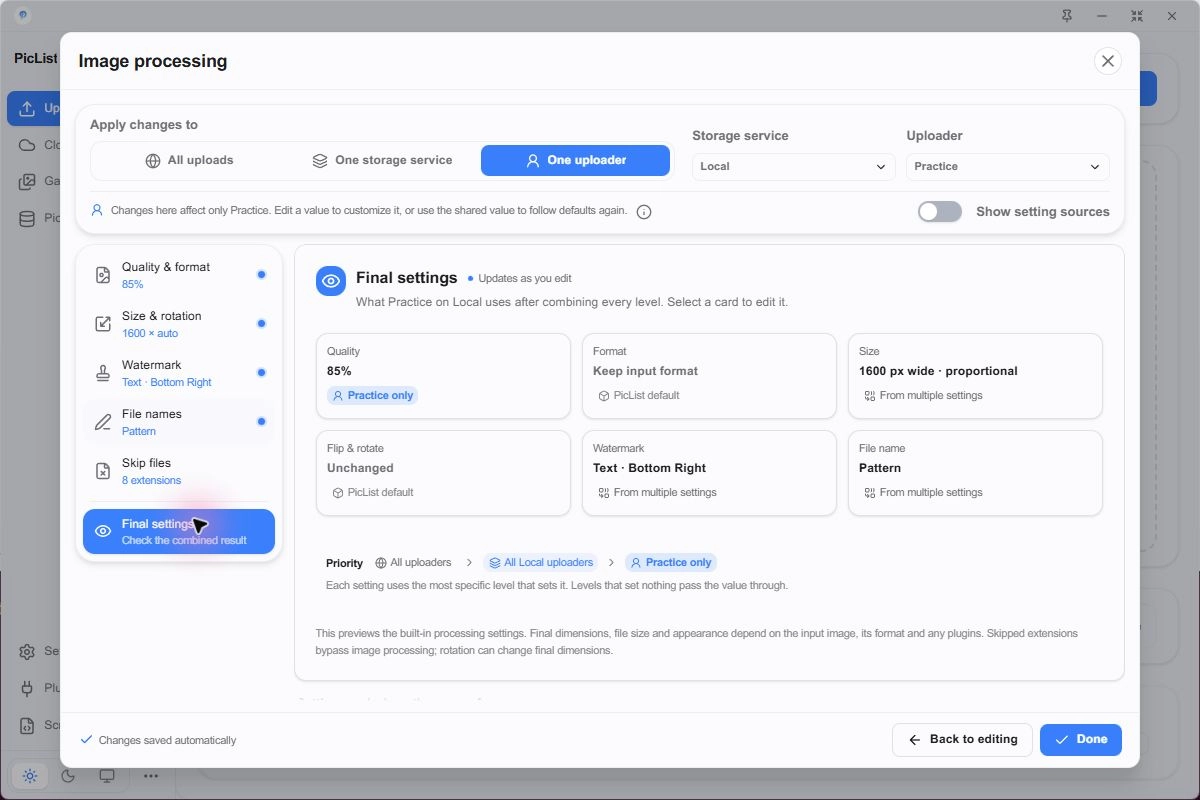
Which files skip processing?
Set bypass extensions under Skip files. Those files can still upload while skipping image processing. Choose according to your needs for GIFs, videos, or files that should retain their encoding.
If a result differs from expectations, check the target, scope, source badges, skip extensions, and extra plugins. See the Configuration reference for JSON fields.