
Gallery and links
Gallery stores this computer's upload history so you can recover links, preview images, and organize records. Cloud management lists actual remote files; images uploaded elsewhere may appear only there.
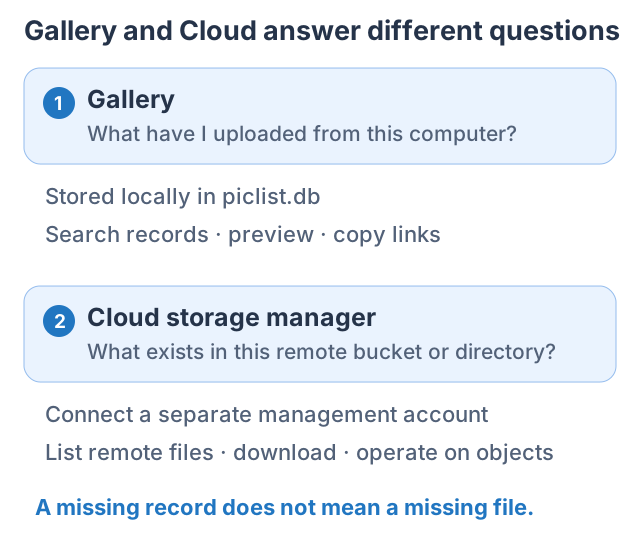
Find an uploaded image
- Click Gallery.
- Recent files appear first with descending date sorting. Check filters and sort order if yours is missing.
- Search by Filename with part of a name, or Search by URL with a domain or path.
- Open Filters for provider, date, and sorting.
- Switch Grid / Table for thumbnails or rows; Grid Size adjusts card size.
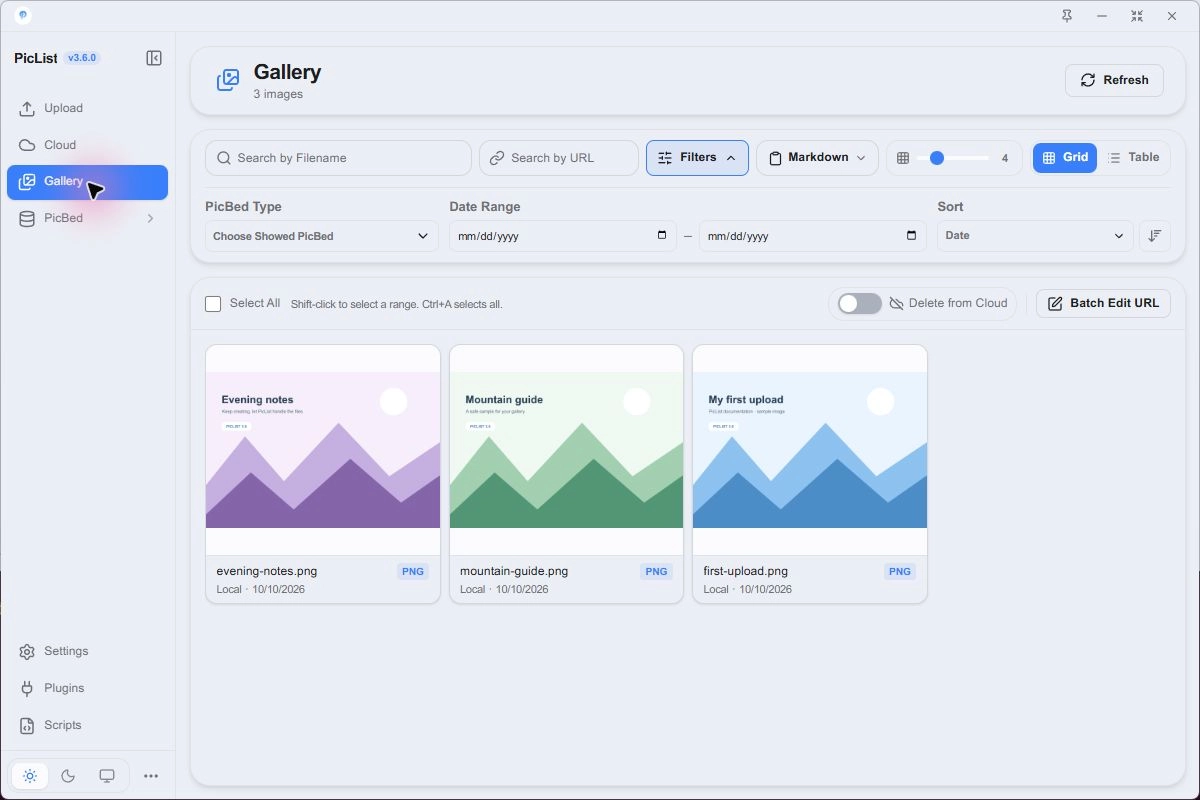
Non-image files can display extension icons. Use Open / preview on a card to view images. Cache or authenticated previews do not prove a public URL is readable.
Copy one link or several
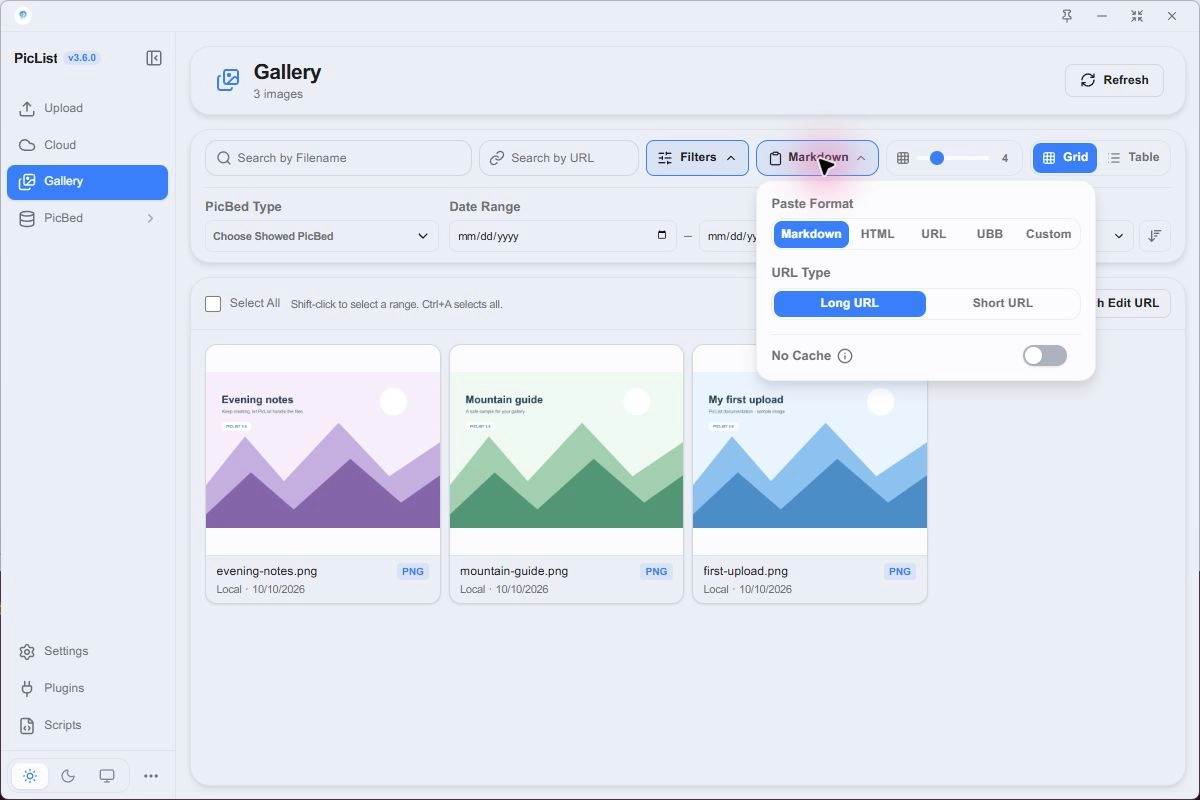
- Open Copy & display and choose Markdown, HTML, URL, UBB, or Custom.
- Click the Copy icon on a card.
- Paste into your editor. If the format is wrong, check this menu as well as Upload's settings.
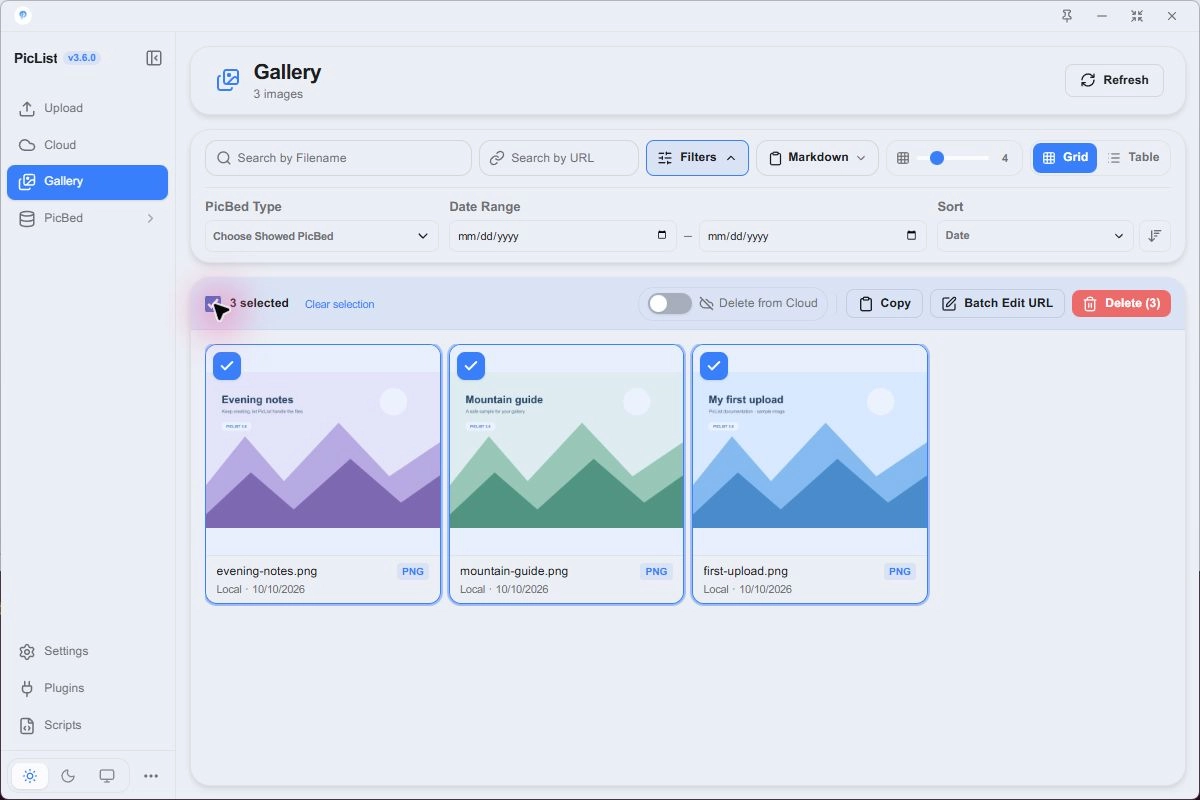
Select cards individually or use Select All. Shift-click selects a range; the gallery also supports its select-all shortcut. The toolbar shows the selected count and a Copy action.
Custom link templates
Use these placeholders in a custom copy template:
| Placeholder | Meaning |
|---|---|
| $url | Record address |
| $fileName | Filename |
| $extName | Extension including the dot |

<a href="$url">$fileName</a>Templates can produce image descriptions or download links. Markdown image syntax does not necessarily display non-image files.
Bulk URL edits: inspect the preview
Existing records do not all change automatically after a domain switch. Confirm the new address serves the files first:
- Narrow the list with search / filters, or select the intended records.
- Click Batch Edit URL and read the scope at the top. A partial selection targets selected records; no selection can target the current displayed list. Selecting the entire list can show “all images shown.”
- Set Find and Replace with. Find supports pattern matching; check special characters against the preview.
- Check the matched count and each before / after result.
- Click Preview changes for the full review, then apply.
- Copy one updated URL and open it in a browser.
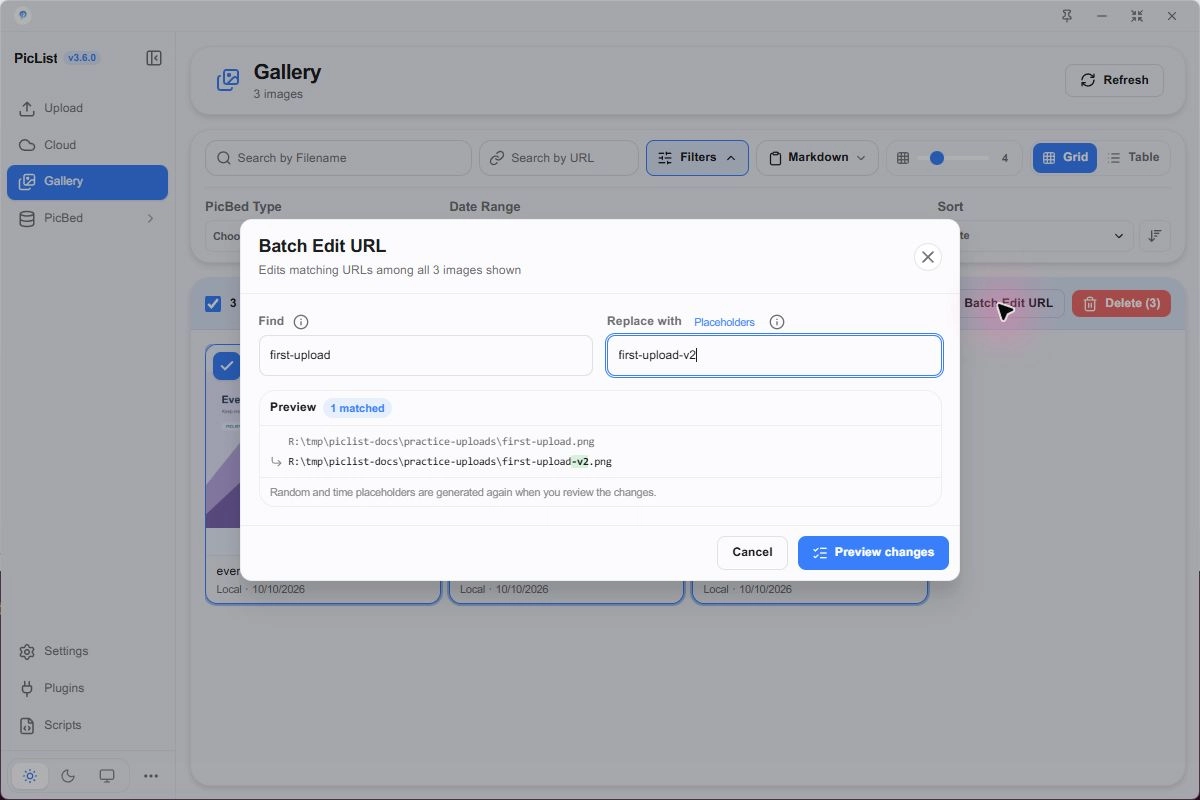
A domain migration example:
Find:    https://old.example.com/
Replace: https://images.example.com/
Random and date placeholders can be regenerated for the final review. Use that final preview as the source of truth. Link replacement does not move files, and existing Markdown in articles does not update with gallery records.
Remove a record or delete a file?
The Delete from Cloud switch affects gallery deletion:
| Action | Effect |
|---|---|
| Remove gallery record only | Removes local history; destination file can remain |
| Also delete from cloud | Deletes the actual destination file and affects its links |
| Clear local preview cache | Removes cached previews, separately from destination files |
Check the switch, scope, and filenames first. Inspect success and failure results afterward; a disappearing card does not prove every remote file was deleted. Back up gallery data before reorganizing history.
Gallery across devices and preview failures
Gallery sync transfers records rather than re-uploading all storage objects. It cannot restore deleted destination files. See Backup and sync for change previews and snapshots.
If a record's image does not load, check the original URL, signature expiry, cache, and remote file; see File previews.