
Backup and sync
Uploaded files, PicList settings, and gallery records are separate data. Before upgrading or moving computers, decide which ones need protection.
Three distinct jobs
| Feature | Data | Entry point |
|---|---|---|
| Configuration backup / sync | Destinations, management connections, settings | Settings → Configuration and sync |
| Gallery sync / snapshots | Upload records and database state | Gallery sync in sync settings |
| Secondary uploader | Another copy of the current uploaded file | Upload settings |
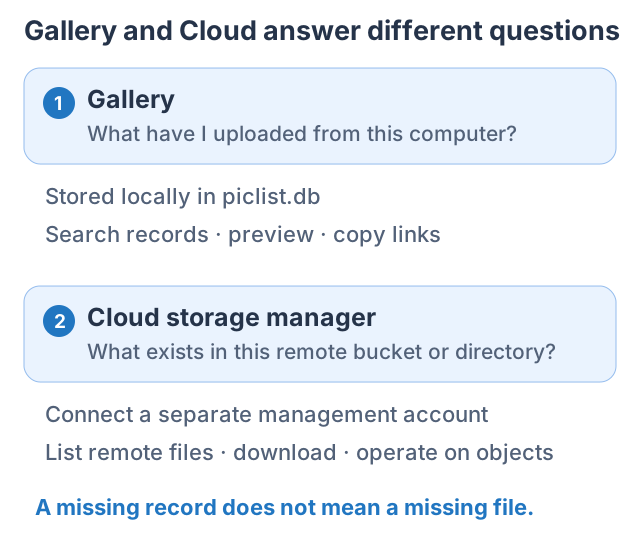
Gallery sync does not back up cloud objects. Copying a bucket does not include your PicList settings.
Make a full local backup first
- Open the data directory from settings and check its location.
- Quit PicList completely so background writes stop.
- Copy the entire directory to a backup location you control.
- Keep external fonts, script dependencies, and other resources stored elsewhere.
- Before restoring, preserve the current directory, then restore and verify the complete backup.
| File or directory | Contents |
|---|---|
| data.json | Upload destinations and desktop settings |
| manage.json | Cloud management settings |
| piclist.db | Local gallery records |
| taskQueue.json and finalization data | Queue and recovery state; retain with a full directory backup |
| scripts/ | Scripts and potentially private .env values |
For portable builds, keep data beside the executable. Configurations can contain account credentials; store backups privately rather than in public repositories.
Configuration sync: check the direction
- Open Settings → Configuration and sync and configure the connection.
- Select a supported Git platform or WebDAV and a private location you control.
- Save, then open the configuration upload / download entry.
- Choose common settings, management settings, or all configurations.
- Upload updates remote settings from this computer; Download updates this computer from remote settings.
- Recheck the default destination, names, fonts, and plugins, then test one image.
Compare which computer has the intended settings before the first sync. Downloading old settings can change current defaults; it is an update operation.
Encryption options do not replace target access control. Local paths, fonts, and plugin dependencies need checking on each machine.
Gallery sync and snapshots
Open Gallery sync from the configuration upload / download entry:
- Check the sync target and local backup.
- Generate or inspect a plan, reviewing added, updated, and removed records.
- Apply the intended changes; preserve partial failure results and inspect affected items.
- Check several representative gallery records and their links.
3.6 snapshot management shows dates and states, exports rollback files, sets retention, and removes deletable snapshots. Export the intended snapshot and preserve current data before recovery. Restoring records cannot restore objects already deleted from a bucket.
Keep tokens, passwords, complete configurations, and configuration QR codes out of shared screenshots.
Import to PicHoro
Import a configuration to your own phone with its QR code; see Mobile integration. A QR code can contain destination credentials. Transfer it privately between your own devices.